You have been sending out applications for weeks. You know you applied to that marketing role at some company... but was it through LinkedIn or Indeed? Did you hear back? Was it the one with the odd salary range, or the one that required a cover letter?
Just want the tool? Open the free job application tracker. Setting up a system from scratch? Read how to track job applications step by step.
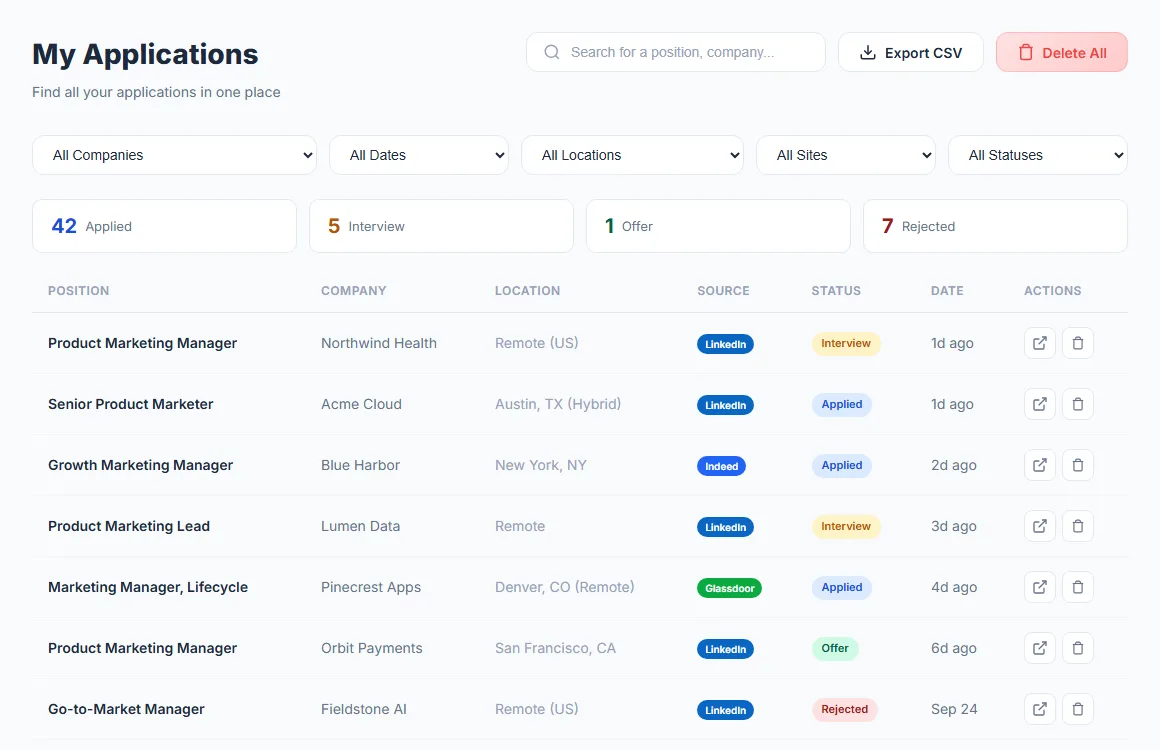
If this sounds familiar, you need a job application tracker. Keeping track of every application — the company, role, date, platform, and status — is the difference between a structured job search and a chaotic one.
In this guide, we compare every major approach to tracking job applications in 2026: spreadsheets, dedicated tracking apps like Huntr and Teal, Notion templates, and Chrome extensions that track applications automatically.
Track Every Application Automatically
AutoApplyMax auto-applies on LinkedIn Easy Apply, autofills forms on Indeed, Glassdoor, Monster, and WTTJ, and auto-tracks every application.
Add the extension to ChromeWhy Tracking Job Applications Matters
Most job seekers underestimate the importance of tracking. They apply to 50 jobs, forget half of them, and end up confused when a recruiter calls about a role they barely remember.
Here is why a job application tracker is essential:
- Avoid duplicate applications — applying to the same job twice looks unprofessional and wastes your time
- Follow up at the right time — knowing exactly when you applied lets you send follow-ups after 7-10 days
- Identify what works — tracking which platforms and job types get callbacks helps you refine your strategy
- Stay motivated — seeing your total application count grow keeps momentum during a long search
- Prepare for interviews — when a recruiter calls, you can instantly pull up the job details and your notes
- Negotiate better — when you have multiple offers, a tracker helps you compare them side by side
Research shows that the average job seeker needs to send between 100 and 200 applications to land one offer. At that volume, tracking is not optional — it is a requirement.
Method 1: The Spreadsheet Approach
The most common job tracker spreadsheet is a simple Google Sheets or Excel file with columns for company name, job title, date applied, platform, status, and notes. It is free, flexible, and familiar to everyone.
You can copy a ready-made version from the free job application tracker template for Google Sheets or Excel.
A typical spreadsheet setup
| Company | Role | Date | Platform | Status |
|---|---|---|---|---|
| Acme Corp | Marketing Manager | Apr 1 | Interview | |
| TechStart Inc | Growth Lead | Apr 2 | Indeed | Applied |
| BigCo Ltd | Product Manager | Apr 3 | Glassdoor | Rejected |
Pros of spreadsheets
- Free — Google Sheets and LibreOffice cost nothing
- Fully customizable — add any columns you want (salary, recruiter name, notes, links)
- Familiar — no learning curve if you already use spreadsheets
- Shareable — easy to share with a career coach or accountability partner
Cons of spreadsheets
- 100% manual — you must type every single entry by hand, every time you apply
- Easy to forget — after a long application session, you will inevitably skip some entries
- No automation — no status updates, no reminders, no analytics
- Scales poorly — a spreadsheet with 200+ rows becomes hard to navigate and filter
- No integration — your spreadsheet has no idea what you did on LinkedIn or Indeed
Spreadsheets are a good starting point, but most serious job seekers outgrow them within the first two weeks. The manual overhead becomes a bottleneck — especially if you are applying to 100+ jobs per day.
Method 2: Dedicated Tracking Tools (Huntr, Teal, Notion)
Several dedicated tools have emerged specifically for job application tracking. Here are the most popular ones:
Huntr
Huntr is a Kanban-style job tracker with a Chrome extension. You save jobs from any website, then drag them through columns like "Wishlist," "Applied," "Interview," and "Offer." It is visually appealing and purpose-built for job seekers.
- Pricing: Free (40 jobs), Pro at $30/month
- Strengths: Beautiful Kanban board, Chrome extension to clip jobs, resume builder
- Weaknesses: Still requires manual saving, free tier is limited, no auto-apply
Teal
Teal offers a job tracker combined with resume and cover letter tools. Its Chrome extension lets you save job listings with one click, and it extracts key details like company name and job title automatically.
- Pricing: Free (basic), Pro at $29/month
- Strengths: AI resume tailoring, job matching score, clean interface
- Weaknesses: Tracking still requires manual "save" action, advanced features require paid plan
Notion templates
Many job seekers use Notion with a pre-built job tracker template. These typically include a database with properties for status, company, date, salary range, and notes. Popular templates are available free on the Notion gallery.
- Pricing: Free
- Strengths: Extremely customizable, integrates with your broader Notion workspace
- Weaknesses: Fully manual, no browser integration, requires Notion knowledge, overkill for just tracking
The common problem with all three
Huntr, Teal, and Notion all require you to manually save or enter each job. They make the tracking process prettier and more organized than a spreadsheet, but they do not solve the core issue: you still have to remember to log every application.
When you are applying to 20-50 jobs in a single session, manually saving each one to a separate tool adds significant friction. Many users report that they stop using these tools after 1-2 weeks because the overhead is too high.
Method 3: Chrome Extensions with Automatic Tracking
The newest approach to job application tracking eliminates manual entry entirely. Instead of logging applications yourself, a job application tracker Chrome extension records every application as it happens — automatically.
This is the approach built into auto-apply Chrome extensions like AutoApplyMax. Because the extension is the one submitting (or helping you submit) your applications, it already knows every detail: job title, company, platform, date, and URL.
How AutoApplyMax's built-in tracker works
AutoApplyMax includes a full-featured job application tracker as part of its dashboard. Here is what it does:
- Automatic logging — every application submitted through the extension (on LinkedIn, Indeed, Glassdoor, Monster, or WTTJ) is recorded instantly with zero manual input
- Status management — update each application's status: Applied, Interview, Offer, Rejected, or Ghosted
- Source breakdown — see a visual chart of how many applications came from each platform (LinkedIn vs Indeed vs Glassdoor, etc.)
- Date filtering — view applications by day, week, or month to track your activity over time
- Manual entry — applied to a job outside the extension? Add it manually to keep everything in one place
- CSV export — download your entire application history as a spreadsheet for backup or analysis
- Dashboard analytics — total applications, response rates, and weekly trends at a glance
The key advantage is that tracking happens as a byproduct of applying. There is no extra step, no browser extension to click, no form to fill out. You apply, and the data is captured.
Comparison: All Methods Side by Side
| Feature | Spreadsheet | Huntr / Teal | AutoApplyMax |
|---|---|---|---|
| Automatic tracking | No | No | Yes |
| Auto-apply | No | No | Yes (LinkedIn Easy Apply; autofill elsewhere) |
| Status management | Manual | Kanban board | Status dropdown |
| Source analytics | No | Limited | Visual charts |
| CSV export | Native | Pro only | Yes |
| Price | Free | Free / $29-30/mo | Free tier available |
| AI resume builder | No | Teal only | Yes |
| ATS score checker | No | No | Yes |
Why Automatic Tracking Changes Everything
The fundamental problem with manual tracking — whether in a spreadsheet or in Huntr — is that it depends on human discipline. And discipline breaks down under volume.
Consider a typical job search session: you spend 2 hours applying to 30 jobs across LinkedIn and Indeed. With manual tracking, you now need to spend another 20-30 minutes entering all 30 applications into your tracker. Most people simply will not do this consistently.
Automatic tracking solves this in three ways:
- Zero friction — there is no extra step. The tracker captures data as you apply, not after.
- 100% accuracy — no forgotten entries, no typos in company names, no wrong dates. The data comes directly from the application itself.
- Real-time dashboard — your application count, source breakdown, and status distribution update instantly. You always know exactly where you stand.
This is especially powerful when combined with auto-apply. AutoApplyMax can submit dozens of applications in a single session, and every single one appears in your tracker immediately — with the correct job title, company, platform, and timestamp.
How to Get the Most Out of Your Job Tracker
Regardless of which tracking method you choose, here are best practices that will make your job search more effective:
1. Update statuses weekly
Set a weekly reminder to review your applications and update statuses. Mark rejections (so you stop waiting), flag interviews, and archive stale applications older than 3 weeks with no response.
2. Track your response rate
Your response rate (callbacks divided by total applications) is the most important metric in your job search. If it is below 5%, your resume or targeting needs work. Check your resume against job descriptions using an ATS score checker.
3. Analyze by source
Are you getting more callbacks from LinkedIn or Indeed? From direct company websites or job boards? Your tracker data reveals which channels are worth your time. Double down on what works.
4. Keep notes for interview prep
When a company calls you back, your tracker should tell you everything: when you applied, what the job description said, what attracted you to the role. Add brief notes when you apply so you are never caught off guard.
5. Know when to pivot
If you have sent 50 applications with zero callbacks, something is wrong. Your tracker makes this visible early — before you waste months on a broken strategy. Adjust your resume, change your target roles, or try different platforms. The best time to apply also matters — read our guide on the best time to apply for jobs.
Setting Up AutoApplyMax as Your Job Tracker
Getting started takes less than 2 minutes:
- Install the extension — download AutoApplyMax from the Chrome Web Store
- Upload your resume — the extension uses it to auto-fill application forms and for the AI resume builder
- Start applying — go to LinkedIn, Indeed, or any supported platform and let the extension handle applications
- Open your dashboard — every application is already tracked. View analytics, update statuses, and export data anytime.
You can also add applications manually for jobs you applied to outside the extension, keeping your entire job search in one place.
Stop Tracking Manually — Let AutoApplyMax Do It
Every application is logged automatically with job title, company, platform, and date. No spreadsheets needed.
Add the extension to ChromeFAQ
What is the best way to track job applications?
The best way to track job applications is with a Chrome extension that records them automatically as you apply. Manual methods like spreadsheets work but require constant upkeep and are prone to missed entries. AutoApplyMax tracks every application automatically with status, date, company, and source.
Is a spreadsheet good enough for tracking job applications?
Spreadsheets work for small job searches (under 20 applications), but they become unmanageable at scale. You have to manually enter every job title, company, date, and URL. Most job seekers stop updating their spreadsheet after the first week. Automatic trackers eliminate this problem entirely.
Does AutoApplyMax track job applications automatically?
Yes. AutoApplyMax automatically logs every application you submit through the extension — including job title, company name, platform (LinkedIn, Indeed, Glassdoor, Monster, WTTJ), date, and status. You can also manually add applications and export your data as CSV.
What is the difference between Huntr, Teal, and AutoApplyMax for tracking?
Huntr and Teal are standalone job tracking tools where you manually save jobs via a browser extension. AutoApplyMax is an auto-apply tool with a built-in tracker — it applies to jobs for you AND tracks them automatically. If you want tracking plus automation, AutoApplyMax combines both in one tool.